Creating a firebase project.
Firebase Console
Go to the Firebase Console
If this is your first firebase project you will need to Sign in to Google
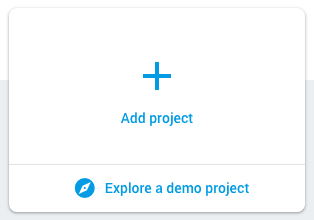
Create Project
Now you can click the button to add a new Project
Hosting
At this point many if the blogs will start talking about setting up the database, but I want to keep this really simple “Hello World” style.
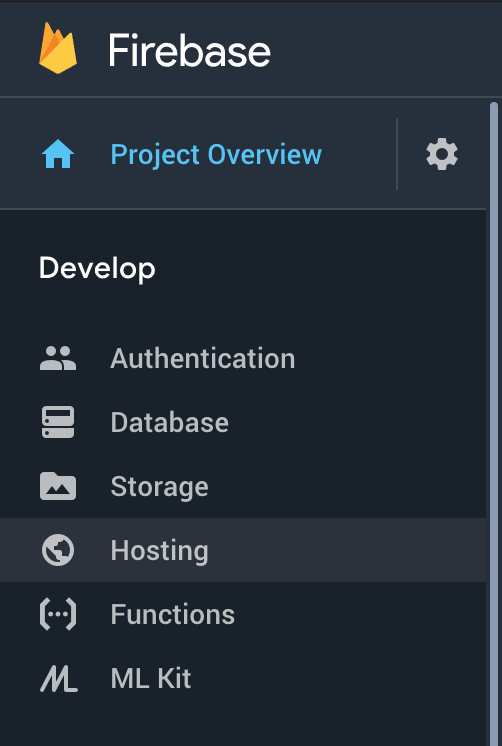
You can now navigate over to the hosting area within firebase.
If you take a look at Firebase hosting quickstart it also has a great guide.
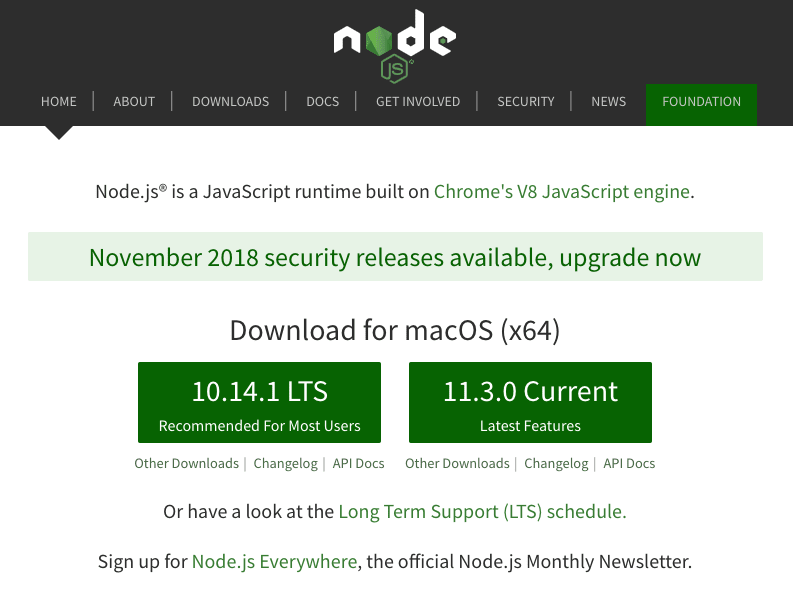
If you are all new to programming you may not have installed Node or NPM yet, just follow this link and install the LTS version.
Hosting Deploy
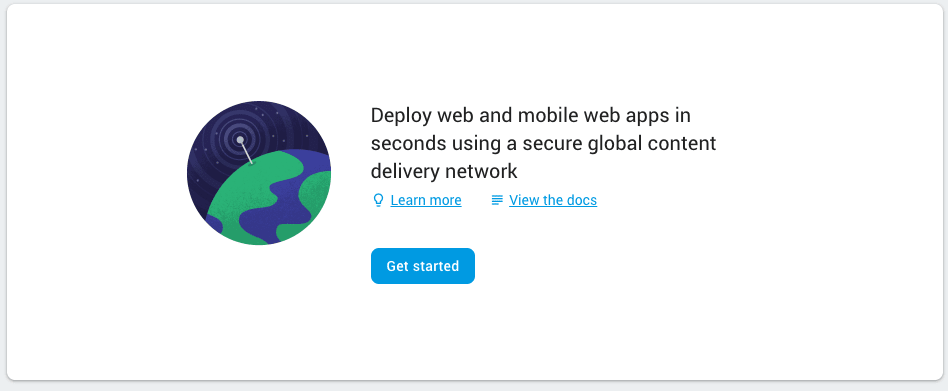
Now you can select “Get started” to walkthrough the guided tips from Firebase - Hosting.
Install Firebase Tools
npm install -g firebase-toolsLogin with firebase
firebase loginMake a new directory
mkdir ~/Downloads/lesson-1-firebase-project
cd ~/Downloads/lesson-1-firebase-project
Initialize firebase
firebase initSelections
- Up/Down key to move to Hosting
- Hit spacebar to make selection
- Enter to continue to next setup
- Navigate to your newly created firebase project
- Hit enter to accept public as location to serve files
- Key n, Enter for not making this a single page app.
- Firebase initialization complete!
Firebase project file
.firebaserc
{
  "projects": {
    "default": "ajonp-lesson-1"
  }
}
Firebase hosting file
firebase.json
{
  "hosting": {
    "public": "public",
    "ignore": [
      "firebase.json",
      "**/.*",
      "**/node_modules/**"
    ]
  }
}
Deploy firebase
Because you are logged into the CLI, the two files above tell firebase the project to use, and how they will be served on nginx. Now you just need to run the deploy command.
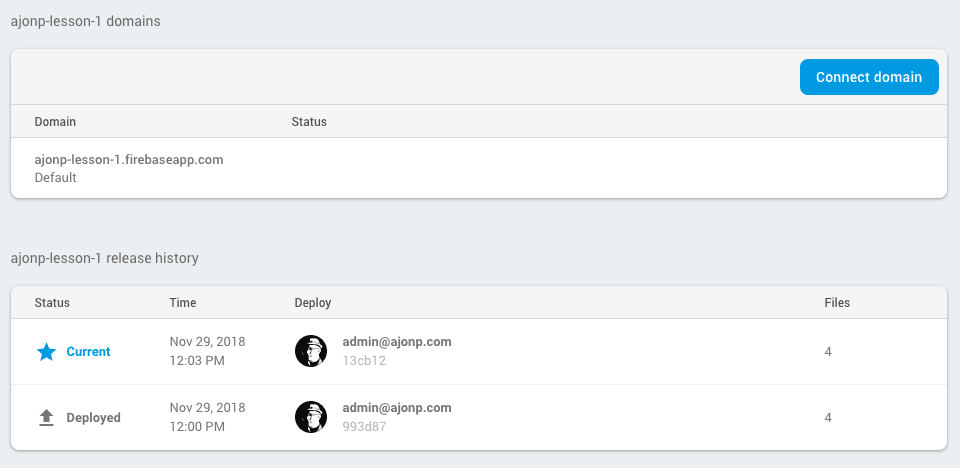
firebase deployNow back inside the firebase console you should see that hosting has now been completed.
Published by ajonp in cli and firebase and tagged firebase and setup using 284 words.